AI Flowchart Generator
Create professional flowcharts and process maps in seconds using DrawGPT's AI Flowchart Generator. Full syntax reference for node shapes, edges, labels, and styling.
DrawGPT is an intuitive AI Flowchart Generator that helps you map out business processes, algorithms, and decision trees. The Flowchart Maker simplifies the creation of complex logic flows through an easy-to-use diagram-as-code interface powered by AI.
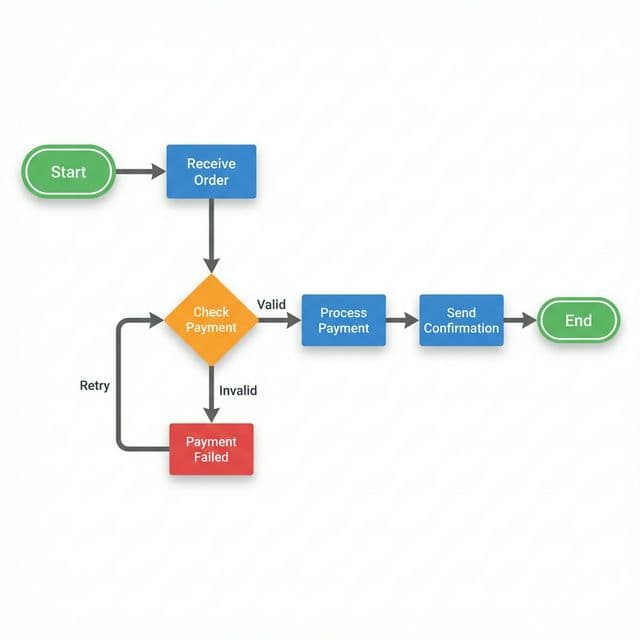
Nodes
Nodes are the building blocks of your flowchart. Declare a node by writing its name, optionally followed by shape and style properties.
Start Process
Check Input
Process Data
End
Node Shapes
DrawGPT supports multiple node shapes to represent different types of steps. Use the [shape: name] syntax:
| Shape | Syntax | Typical Use |
|---|---|---|
| Rectangle | [shape: rectangle] | Process / action steps |
| Rounded Rectangle | [shape: rounded-rectangle] | Start / end terminators |
| Diamond | [shape: diamond] | Decision points |
| Cylinder | [shape: cylinder] | Databases / data stores |
| Circle | [shape: circle] | Connectors / users |
Start [shape: rounded-rectangle]
Validate Input [shape: diamond]
Process Order [shape: rectangle]
Save to DB [shape: cylinder]
End [shape: rounded-rectangle]
Shapes matter
Using the correct shape makes your flowchart instantly readable. Diamonds always mean "decision", cylinders always mean "data store" — following standard flowchart conventions.
Edges (Connections)
Connect nodes with directional arrows using --> syntax. Add labels in brackets to annotate the edge:
Start --> Validate Input
Validate Input --> Process Order: [Valid]
Validate Input --> Show Error: [Invalid]
Process Order --> Save to DB
Save to DB --> End
Edge Labels
Labels appear on the connecting arrows. They're especially useful for decision branches:
Check Payment [shape: diamond]
Fulfill Order [shape: rectangle]
Send Error [shape: rectangle]

Check Payment --> Fulfill Order: [Payment Success]
Check Payment --> Send Error: [Payment Failed]
Styling Nodes
Add icons and colors to nodes using bracket syntax:
User Input [shape: rounded-rectangle, icon: user, color: #3B82F6]
API Call [shape: rectangle, icon: server, color: #10B981]
Database [shape: cylinder, icon: database, color: #8B5CF6]
Examples
A straightforward linear process:
Receive Request [shape: rounded-rectangle, color: #10B981]
Parse Input [shape: rectangle]
Validate Data [shape: rectangle]
Save Record [shape: cylinder, color: #3B82F6]
Return Response [shape: rounded-rectangle, color: #10B981]

Receive Request --> Parse Input
Parse Input --> Validate Data
Validate Data --> Save Record
Save Record --> Return Response
A flow with conditional branching:
Start [shape: rounded-rectangle, color: #10B981]
Check User Role [shape: diamond, color: #F59E0B]
Admin Dashboard [shape: rectangle, color: #3B82F6]
User Dashboard [shape: rectangle, color: #8B5CF6]
Guest Page [shape: rectangle, color: #6B7280]

Start --> Check User Role
Check User Role --> Admin Dashboard: [Admin]
Check User Role --> User Dashboard: [Registered]
Check User Role --> Guest Page: [Anonymous]
A flow with retry logic:
Start [shape: rounded-rectangle, color: #10B981]
Send Request [shape: rectangle]
Check Response [shape: diamond, color: #F59E0B]
Process Data [shape: rectangle, color: #3B82F6]
Log Error [shape: rectangle, color: #EF4444]
Retry [shape: diamond, color: #F97316]
Fail [shape: rounded-rectangle, color: #EF4444]
Done [shape: rounded-rectangle, color: #10B981]

Start --> Send Request
Send Request --> Check Response
Check Response --> Process Data: [200 OK]
Check Response --> Log Error: [Error]
Log Error --> Retry
Retry --> Send Request: [Attempts < 3]
Retry --> Fail: [Max Retries]
Process Data --> Done
Full Example: CI/CD Pipeline
Push Code [shape: rounded-rectangle, icon: code, color: #3B82F6]
Run Lint [shape: rectangle]
Run Tests [shape: rectangle]
Tests Pass [shape: diamond, color: #F59E0B]
Build Image [shape: rectangle, color: #10B981]
Push to Registry [shape: cylinder, color: #8B5CF6]
Deploy to Staging [shape: rectangle, color: #F97316]
Deploy to Prod [shape: rectangle, color: #EF4444]
Notify Team [shape: rounded-rectangle, icon: bell, color: #10B981]
Fix Issues [shape: rectangle, color: #EF4444]

Push Code --> Run Lint
Run Lint --> Run Tests
Run Tests --> Tests Pass
Tests Pass --> Build Image: [Pass]
Tests Pass --> Fix Issues: [Fail]
Fix Issues --> Push Code
Build Image --> Push to Registry
Push to Registry --> Deploy to Staging
Deploy to Staging --> Deploy to Prod
Deploy to Prod --> Notify Team
Quick Reference
| Feature | Syntax | Example |
|---|---|---|
| Node | Name | Process Data |
| Shaped node | Name [shape: x] | Decision [shape: diamond] |
| Styled node | Name [shape: x, icon: y, color: z] | Start [shape: rounded-rectangle, color: green] |
| Edge | A --> B | Start --> Process |
| Labeled edge | A --> B: [label] | Check --> OK: [Valid] |
AI ERD Generator
Automatically generate Entity Relationship Diagrams (ERDs) and database schemas using DrawGPT's AI and Diagram-as-Code syntax. Full syntax reference for entities, relationships, properties, and styling.
AI Sequence Diagram Generator
Learn how to generate complex sequence diagrams in seconds using DrawGPT's AI and Diagram-as-Code syntax. Full syntax reference for participants, messages, activations, and conditional blocks.